Tuesday, November 9, 2021

NORMAL DISTRIBUTION: STANDARDIZING RETURNS FROM MUTUAL FUNDS

 NORMAL DISTRIBUTION: STANDARDIZING RETURNS FROM MUTUAL FUNDS

The annual returns for 30 mutual funds appear in your Google classroom or on my github with file name Standardizing Finished.xlsx. Find and interpret the Z-value of these returns.

Objective:

To use Excel and Tableau to standardize annual returns of various mutual funds.


The Excel Data:

Fund

Annual return

A

0.007

B

0.080

C

0.082

D

0.123

E

0.022

F

0.054

G

0.109

H

0.097

I

0.047

J

0.021

K

0.111

L

0.180

M

0.157

N

0.134

O

0.140

P

0.107

Q

0.193

R

0.156

S

0.095

T

0.039

U

0.034

V

0.064

W

0.071

X

0.079

Y

0.088

Z

0.077

AB

0.125

AC

0.094

AD

0.078

AE

0.066


Solution for Excel:

The 30 annual returns appear below. Their mean and standard deviation are calculated in cells B4 and B5 with the AVERAGE and STDEV.S functions. The corresponding Z-values are calculated in Column C by entering the formula

=(B8-Mean)/Stdev

In cell C8 and copying it down column C.  the Z values range from a low of -1.80 to a high of 2.19. Meaning, the return for stock A is about 1.80 standard deviations below the mean, whereas the return for stock O is 1.0528 standard deviation above the mean.


 Solution for Tableau.

Step 1. Upload the Standardizing Finished.xlsx in your Tableau Desktop.


Step 2. Drag “Funds” to Columns pill and “Annual Return” to Rows pill and make sure it is AVG.  


Step 3. Drag Reference Line to the Canvas and make sure you choose Value. Label your worksheet as “Mean”.

Step 4. Create a Calculated Field because the window average is used (which is a table calculation) this means that the Profit has to be aggregated, hence SUM and in the Table Calculation you should choose Annual Return.

(SUM([Annual return])-WINDOW_AVG(SUM([Annual return])))/WINDOW_STDEV(SUM([Annual return]))


Step 5. Once you have created the calculated field in Tableau, you can drag the field onto labels, or the tooltips to see the calculated z-score for all of the data points. You can also drag the calculated field onto color and set a diverging color scheme to differentiate the positive z-scores from the negative z-scores and to see the distance from the mean (i.e. the gradient). Label your worksheet as Z scores

Step 6. Duplicate your Z-Score Worksheet. Swap the Rows and columns. In the Label put the alignment at the Right then make your chart in descending order.

Step 7. On the column pill click the arrow in the AVG (Annual Return) and choose Compute Using Fund. Duplicate your worksheet.

Step 8. Create a Box and Whisker Plot using “Show Me”.

Z values range from a low of -1.80 to a high of 2.19. Meaning, the return for stock A is about 1.80 standard deviations below the mean, whereas the return for stock O is 1.0528 standard deviation above the mean.

Arnel Lopez Cadeliña, MBA, REA, CFA (Investment Foundation Certificate)


Sunday, November 7, 2021

Data Analytics Using Tableau: Finding Relationships Among Variables II


Data Analytics Using Tableau: Finding Relationships Among Variables II

This is my second Business Analytics Lecture on Finding Relationships among Variables. The Excel Data can be downloaded at https://github.com/alcadelina/business-analytics-excel-data. Choose the file Elecmart. The file contains data on 400 customer orders during the period of several months for Elecmart Company. 

There are several cateforical variables and several numeric variables. The categorical variables include the day of the week, time of day, region of country, type of credit card used, gender of customer, and buy category of the customer (high, medium or low) based on previous behavior. 

The numeric variables include the number of items ordered, the total cost of the order, and the price of the highest-priced item purchased. 

If you are the business manager of Elecmart how will you summarize the data so that you can understand the buying behavior of your customers? How can you break down the customer order data by a number of categorical variables?

The objective is to create a Data Story similar below:


Step 1. Upload the Elecmart file to Tableau Desktop.


Step 2. Drag and drop "Time" to Columns pill and "region" to Rows pill. Drag "Total Cost" to Text in the Marks Card. Name the sheet "SUM OF TOTAL COST BY TIME AND REGION".


Step 3. Drag and drop "Region" to Columns pill and "Time" to Rows pill. Drag "Total Cost" to Text in the Marks Card. Name the sheet "CHANGING OF LOCATIONS". Add Grand Total to both Rows and columns.


Step 4. Drag and drop "Region" to Columns pill , "Time" and "Gender" to Rows pill. Drag "Total Cost" to Text in the Marks Card. Name the sheet "CHANGING OF LOCATIONS". Add Grand Total to both Rows and columns.

Step 5. Drag and drop "Region" to Columns pill ,  "Gender" " and "Time"to Rows pill. Drag "Total Cost" to Text in the Marks Card. Name the sheet "CHANGING OF LOCATIONS". Add Grand Total to both Rows and columns.


Step 6. Drag and drop "Region" and "Time" to Columns pill  and "Total Cost"to Rows pill.  Make the "Total Cost" Average. Click and Drag "AVG (Total Cost)" to Text in the Marks Card. Click and Drag "Time" to Colors. Drag "Time" to Filters and click only " Evening" and "Morning". Name the sheet "FILTERING ON THE FIELDS IN THE ROWS AND COLUMNS AREAS". Explore putting the "evening" and "Morning" as the top heading by clicking "Analysis", "Table Layout" and "Advanced". 


Step 7. Duplicate your sheet output in Step 6 and name the sheet " FILTERING ON THE FIELDS IN THE ROWS AND COLUMNS AREAS WITH GENDER ADDED". Drag and drop "AVG (Total Cost)" to Columns pill and "Region" , "Time"   and "Gender"to Rows pill.  . Click and Drag "AVG (Total Cost)" to Text in the Marks Card. Click and Drag "Gender" to Colors. Drag "Time" to Filters and click only " Evening" and "Morning". Clean your graph as shown below:

Step 8. Duplicate your sheet output in Step 7 and name the sheet " AVERAGE TOTAL COST BY TIME, MIDWEST"Drag and drop "AVG (Total Cost)" to Rows pill and  , "Time" and "Region" to Rows pill.  Click and Drag "Region" to Color in the Marks Card. Clean your graph as shown below:


Step 9. Drag "Total Cost" to Column pill and "High Items" to Rows.  In "Analytics" drag "reference Line" to the canvass. Explore putting gray color on the upper scatter plot. Name your sheet " Relationship of Total Cost and High Items".


Step 9. Drag "Total Cost" to Rows pill and "High Items" to Columns.  In "Analytics" drag "reference Line" to the canvass. Explore putting colors on the scatter plot. Name your sheet " Relationship of Average Total Cost and High Items".

Step 10. At the bottom near dashboard, click "Story" and then create a Data Story using all the worksheets you created.


Arnel Lopez Cadeliña, MBA, REA, CFA (Investment Foundation Certificate)


Thursday, November 4, 2021

Data Analytics Using Tableau: Finding Relationships Among Variables


Data Analytics Using Tableau: Finding Relationships Among Variables 

This is my Business Analytics Lecture on Finding Relationships among Variables. The Excel Data can be downloaded at https://github.com/alcadelina/smoking-drinking.git . The objective is to show if there is a Relationship Between Smoking and Drinking. Listing the habits of 8761 adults, the categories have been coded as:

N---- Non      O--- Occasional      H-- Heavy      S--- Smoker      D--- Drinker

The Objective is to use Tableau Crosstabs and Percentages of Row and Column totals. The output should be similar below:


Step 1. Upload the Excel data to Tableau Desktop.


Step 2. Drag"Smoking" to the Column pill and "Drinking" to the Rows pill. Drag #Data (Count) to the "Text" in the Marks Card. Label it Percentages of Row Totals. In the "CNT(Data)" click "Compute" Using "Table (Across). 


Step 3. Duplicate the Percentages of Row Totals and rename it Percentages of Column Totals. In the "CNT(Data)" click "Compute" Using "Table (Down).


Step 4. We will now create a Bar Chart. Drag "Drinking" and "Smoking" in the Columns pill and "Data (Count)" in the Rows pill. Press "Ctrl" and drag "Data (Count)" to "Label" in the Marks Card. Drag "Smoking" in the "Color" of the Marks Card. In the Rows Pill click the arrow button of the CNT (Data) and click "Compute" using "Smoking". Make necessary "Axis Line" for the Columns. Label your Bar Graph as "Percentages of Row Totals"


Step 5. Duplicate the "Percentages of Row Totals" and rename it as "Percentages of Column Totals". Switch the position of the "Drinking" and "Smoking" in the "Columns" pill. 


In the Rows Pill click the arrow button of the CNT (Data) and click "Compute" using "Drinking". Make necessary "Axis Line" for the Columns. 

Step 6. Create a Dashboard. Choose "Automatic" in the Size, make it "Tiled", click "Show Dashboard Title" and type "Finding Relationships Between Smoking and Drinking". Drag all your sheets in the Dashboard. Experiment on "Vertical" and "Horizontal" in the Objects Card. In the "Layout" add Border and Padding. Explore. 


Arnel Lopez Cadeliña, MBA, REA, CFA (Investment Foundation Certificate)

Sunday, October 3, 2021

GANTT CHART IN TABLEAU


Gantt charts are commonly used in project management as well as in financial management. When I was in a telecommunication company, Gantt charts were used frequently hence it is one of the most popular and useful charts which will show activities (tasks or events) displayed against time. On the left of the chart is a list of the activities and along the top is a suitable time scale. Each activity is represented by a bar; the position and length of the bar reflect the start date, duration, and end date of the activity. This allows you to see at a glance: 

  • What the various activities are
  • When each activity begins and ends
  • How long each activity is scheduled to last
  • Where activities overlap with other activities, and by how much
  • The start and end date of the whole project.


The objective is to create the above Gantt chart using the following collected data:


Step 1. Create a Calculated Field and enter the title "Duration". Enter the calculations:DATEDIFF ("day"' [Start date], [End Date]) and click OK.

Step 2. Create again a Calculated field and enter the title "Completed". Enter the calculations "[Duration]*[Percentage Complete]". Apply and click OK.


Step 3. Drag the "Start date" dimension to the Columns shelf and click the "Year (Start Date)" drop-down arrow and select "Day" as a "Continuous". Second, drag the "project" to the rows shelf. Now drag "duration" to the "size". Afterward, click on the "Standard" drop-down arrow then select "Entire view".

Step 4. Press Ctrl and Drag to Drop the "Day" pill in the columns shelf to the right in order to duplicate. Right-click on this pill and select Dual Axis.


Step 5. Right-click on the Axis header and select "Synchronize Axis".

Step 6. In the second "Day" Marks Panel, drag "Completed" to the Size Mark then click "Color" Mark.
Step 7. In the first "Day" Marks Panel, drag "Percentage completed" onto the "Lable" Mark then "center" the label. 
Step 8. Add a filter "Accountable" of Tasks. Drag "Accountable" to the filter's shelf and check all the boxes in the pop-up window. Click OK.


Step 9. Create a calculated field that return's today's date as a Reference Line.  Named it "Today's date" and enter [Today ()]. Drag "Today's date" to "Detail" on the first Marks. Right-click "Today's date" on the Marks and select "Exact Date".

Step 10. Right-click the date axis and select "Add Reference Line'. Then select "Today's date" or create a Parameter. Set it to:"Value" in the "Add Reference Line, Band or Box dialog".

Step 11. Final Gantt Chart is below:


Arnel Lopez Cadeliña, MBA, RREA, CFA (Investment Foundation)
Tableau Author


Friday, September 24, 2021

Data Analytics and Visualization using Tableau: Maps

 In Tableau, we can create maps that are useful in conducting geographic analysis. We need only to have a data source that contains locations with latitude and longitude.

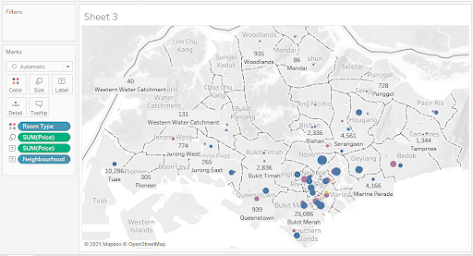
The objective is to create a map exactly like this below:


The raw data from http://insideairbnb.com/get-the-data.html is:


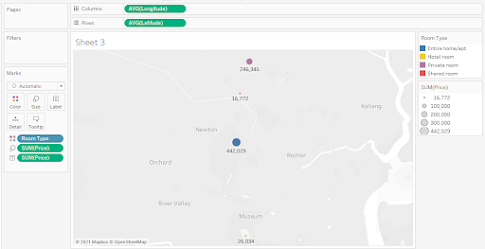
Step 1.Drag "Longitude" to Columns Shelf. Drag "Latitude" to Rows Shelf. Drag "Room Type" to color.


Step 2. Drag "Price" to "Size" and "Label". Drg "Neighborhood" to "Label". Since the data is aggregated, click on "Analysis" and unselect "Aggregate Measure".

You now have a map of Airbnb in Singapore.

The Singapore map shows that Airbnb rents are concentrated in Southern Singapore specifically in the neighborhood of Kallang, Newton, River Valley, Downtown Core, and Outram. In terms of rental prices the highest can be found in the Orchard neighborhood and the lowest in the Kallang neighborhood. The most expensive private rooms are in the Orchard but the most inexpensive private rooms can be found in the Kallang neighborhood.

Arnel Lopez Cadeliña, MBA, RREA, CFA (Investment Foundation)
Tableau Author